This article covers the host-level setup of a purpose-built AMD EPYC 9124 tower server for Oracle workload virtualisation using Proxmox VE 9.1. The hardware was purchased with BIOS pre-configured for IOMMU, SR-IOV, and Global C-States. Before creating a single VM, the network bridges, VLANs, and ZFS storage pools must be correct — mistakes here cascade into every VM that follows.
1. Hardware Reference
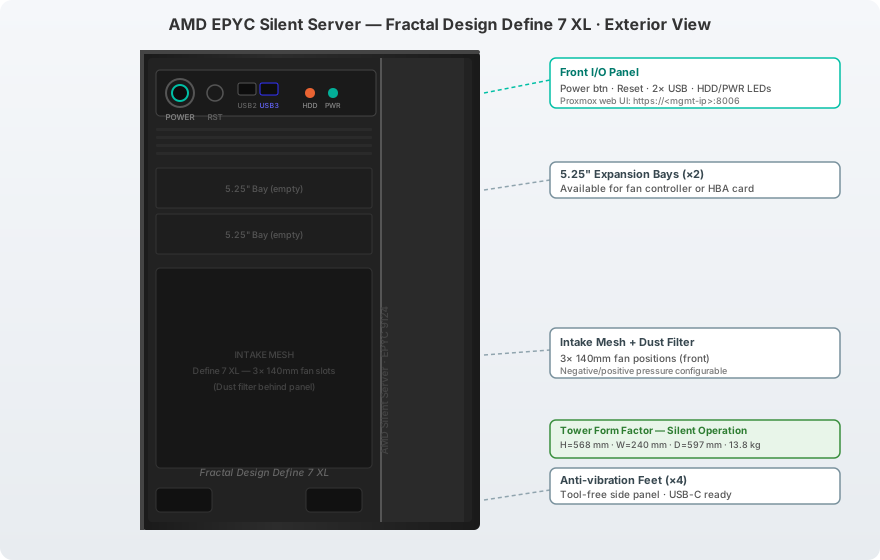
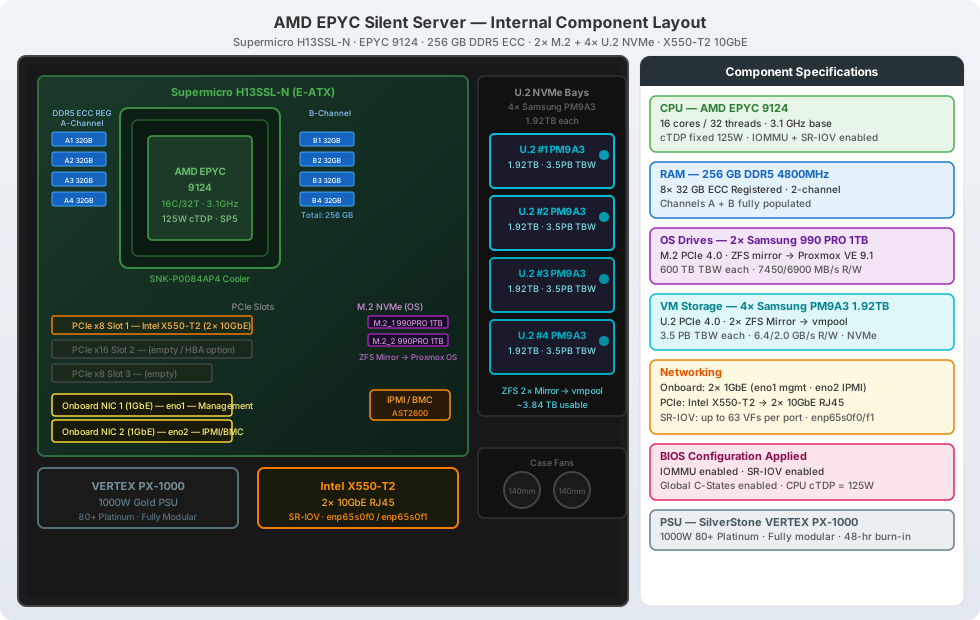
| Component | Detail |
|---|---|
| Case | Fractal Design Define 7 XL |
| Motherboard | Supermicro H13SSL-N (E-ATX, AMD SP5) |
| CPU | AMD EPYC 9124 — 16C/32T, 3.1 GHz, 125W cTDP |
| RAM | 8× 32 GB DDR5-4800 ECC Registered = 256 GB |
| OS NVMe | 2× Samsung 990 PRO 1 TB M.2 PCIe 4.0 (ZFS mirror) |
| VM NVMe | 4× Samsung PM9A3 1.92 TB U.2 PCIe 4.0 (ZFS pool) |
| 1GbE NICs | 2× onboard (H13SSL-N) |
| 10GbE NICs | 1× Intel X550-T2 PCIe → 2 ports (SR-IOV capable) |
| PSU | SilverStone VERTEX PX-1000 (1000W, 80+ Platinum) |
| BIOS | IOMMU on · SR-IOV on · Global C-States on · cTDP 125W |
2. Proxmox VE 9.1 Installation
2.1 Boot and Install
Download the Proxmox VE 9.1 ISO from https://www.proxmox.com/en/downloads and write to USB:
# On a Linux workstation
dd if=proxmox-ve_9.1-1.iso of=/dev/sdX bs=4M conv=fsync status=progress
At the Proxmox installer:
- Target disk: Select both Samsung 990 PRO drives and choose
ZFS (RAID1)— this creates a ZFS mirror for the OS automatically - ZFS options: ashift=12 (correct for NVMe), compression=lz4
- IP: set the management IP now (e.g.,
192.168.10.2/24, GW192.168.10.1) - Hostname:
pve01.lab.example.com
After reboot, verify the ZFS mirror:
zpool status rpool
# Should show: state ONLINE, two-way mirror of nvme0n1 and nvme1n1
2.2 Remove the Enterprise Subscription Warning
# Disable enterprise repo (requires paid subscription)
sed -i 's/^deb/# deb/' /etc/apt/sources.list.d/pve-enterprise.list
sed -i 's/^deb/# deb/' /etc/apt/sources.list.d/ceph.list 2>/dev/null || true

# Add the no-subscription repo
echo "deb http://download.proxmox.com/debian/pve bookworm pve-no-subscription" \
  > /etc/apt/sources.list.d/pve-no-sub.list

apt update && apt full-upgrade -y
3. Identifying Network Interfaces
Verify the exact NIC names after first boot — they vary by PCI slot position:
ip link show
# Expected output:
# eno1       — Onboard 1GbE NIC 1 (management)
# eno2       — Onboard 1GbE NIC 2 (IPMI/secondary)
# enp65s0f0  — X550-T2 port 0 (10GbE — public/VM)
# enp65s0f1  — X550-T2 port 1 (10GbE — private/storage)

# Confirm 10GbE speed
ethtool enp65s0f0 | grep Speed
# Speed: 10000Mb/s
Important: If your PCIe slot enumeration differs, substitute
enp65s0f0/f1with the actual names shown byip link show.
4. Network Design
The EPYC server hosts Oracle RAC clusters which require strict network separation: public client traffic, private Cache Fusion interconnect, and storage must never share the same segment or compete for bandwidth.
| VLAN ID | Name | Subnet | Purpose |
|---|---|---|---|
| — | Native | 192.168.10.0/24 | Proxmox management (untagged on eno1) |
| 20 | public | 192.168.20.0/24 | VM public / client access (RAC VIP, SCAN, OMS, OKV, OGG) |
| 30 | rac1-priv | 192.168.30.0/24 | RAC Cluster 1 private interconnect (Cache Fusion) |
| 40 | rac2-priv | 192.168.40.0/24 | RAC Cluster 2 private interconnect |
| 50 | storage | 192.168.50.0/24 | iSCSI / NFS shared storage (future use) |
4.1 Linux Bridge and VLAN Configuration
Edit /etc/network/interfaces on the Proxmox host:
# /etc/network/interfaces

auto lo
iface lo inet loopback

# ──────────────────────────────────────────────────
# Management — Proxmox host (untagged, 1GbE)
# ──────────────────────────────────────────────────
auto eno1
iface eno1 inet manual

auto vmbr0
iface vmbr0 inet static
    address  192.168.10.2/24
    gateway  192.168.10.1
    bridge-ports eno1
    bridge-stp   off
    bridge-fd    0
    # Management: Proxmox web UI, SSH, backups

# ──────────────────────────────────────────────────
# IPMI / BMC out-of-band access (1GbE eno2)
# Optional: set static IP directly on BMC via ipmitool
# ──────────────────────────────────────────────────
auto eno2
iface eno2 inet manual
    # Used by IPMI; do not assign a host IP unless needed

# ──────────────────────────────────────────────────
# VM Public + Inter-VLAN traffic (10GbE enp65s0f0)
# VLAN-aware bridge — VMs select their VLAN via tag
# ──────────────────────────────────────────────────
auto enp65s0f0
iface enp65s0f0 inet manual
        mtu 9000

auto vmbr1
iface vmbr1 inet manual
    bridge-ports enp65s0f0
    bridge-stp   off
    bridge-fd    0
    bridge-vlan-aware yes
    bridge-vids  2-4094
    mtu          9000
    # VLAN 20 → public (RAC clients, OMS, OKV, OGG)

# ──────────────────────────────────────────────────
# RAC Private Interconnect + Storage (10GbE enp65s0f1)
# ──────────────────────────────────────────────────
auto enp65s0f1
iface enp65s0f1 inet manual
        mtu 9000

auto vmbr2
iface vmbr2 inet manual
    bridge-ports enp65s0f1
    bridge-stp   off
    bridge-fd    0
    bridge-vlan-aware yes
    bridge-vids  2-4094
    mtu          9000
    # VLAN 30 → RAC1 interconnect
    # VLAN 40 → RAC2 interconnect
    # VLAN 50 → storage
Apply and verify:
systemctl restart networking
bridge vlan show
# Confirm VLANs are registered on vmbr1 and vmbr2
ip -d link show vmbr1
4.2 Jumbo Frames (Critical for RAC Interconnect)
# Verify MTU 9000 is active
ip link show enp65s0f0 | grep mtu
ip link show vmbr2 | grep mtu

# Persist in sysctl
echo "net.core.rmem_max = 268435456"   >> /etc/sysctl.d/99-oracle-network.conf
echo "net.core.wmem_max = 268435456"   >> /etc/sysctl.d/99-oracle-network.conf
echo "net.ipv4.tcp_rmem = 4096 87380 268435456" >> /etc/sysctl.d/99-oracle-network.conf
echo "net.ipv4.tcp_wmem = 4096 87380 268435456" >> /etc/sysctl.d/99-oracle-network.conf
sysctl -p /etc/sysctl.d/99-oracle-network.conf
5. ZFS Storage Configuration
5.1 OS Pool (rpool) — Already Created by Installer
zpool status rpool
zfs list rpool

# Tune ARC — Proxmox host only needs 4 GB for itself;
# leave RAM for VMs (ZFS ARC competes with KVM hugepages)
echo "options zfs zfs_arc_max=4294967296" > /etc/modprobe.d/zfs.conf
update-initramfs -u -k all
5.2 VM Storage Pool (vmpool) — 4× U.2 NVMe as 2× Mirror
The 4 PM9A3 drives appear as /dev/nvme2n1, /dev/nvme3n1, /dev/nvme4n1, /dev/nvme5n1 (nvme0/1 are the M.2 OS drives):
# Confirm device paths and sizes
nvme list
# Identify the 4× 1.92TB PM9A3 drives

# Create 2-mirror vdev pool (best random IOPS for Oracle ASM)
# Replace nvme2n1–nvme5n1 with actual device names from nvme list
zpool create -f vmpool \
  mirror /dev/nvme2n1 /dev/nvme3n1 \
  mirror /dev/nvme4n1 /dev/nvme5n1

# Set optimal properties for VM workloads
zfs set atime=off              vmpool
zfs set compression=lz4        vmpool
zfs set sync=disabled          vmpool   # VMs use their own sync; host-level sync not needed
zfs set recordsize=64K         vmpool   # Default; override per dataset

# Create datasets
zfs create vmpool/vms                    # VM disk images (qcow2/raw)
zfs create -o recordsize=64K vmpool/vms  # Keep 64K for VM images
zfs create vmpool/rac-shared             # Shared ASM zvols for RAC

# Verify
zpool status vmpool
zfs list -r vmpool
Expected usable capacity: ~3.84 TB (2× 1.92 TB mirrors, ~95% of raw).
5.3 Register vmpool in Proxmox
# Add ZFS pool as Proxmox storage backend
pvesm add zfspool vmpool-store \
  --pool vmpool/vms \
  --sparse 1 \
  --content images,rootdir

# Verify in GUI: Datacenter → Storage → vmpool-store
pvesm status
5.4 Shared ASM Zvols for Oracle RAC
Each RAC cluster needs shared block devices for ASM disk groups. On a single-node Proxmox, we create zvols and attach them to both VMs in the cluster:
# RAC Cluster 1 — ASM disk layout
# DATA diskgroup: 2 × 150 GB
zfs create -V 150G -b 4096 vmpool/rac-shared/rac1-asm-data1
zfs create -V 150G -b 4096 vmpool/rac-shared/rac1-asm-data2
# RECO diskgroup: 1 × 100 GB
zfs create -V 100G -b 4096 vmpool/rac-shared/rac1-asm-reco
# GRID diskgroup (OCR/Voting): 3 × 1 GB (odd number required for voting)
zfs create -V 1G   -b 4096 vmpool/rac-shared/rac1-asm-ocr1
zfs create -V 1G   -b 4096 vmpool/rac-shared/rac1-asm-ocr2
zfs create -V 1G   -b 4096 vmpool/rac-shared/rac1-asm-ocr3

# RAC Cluster 2 — same layout
for disk in data1 data2 reco ocr1 ocr2 ocr3; do
  size=150G; [[ $disk == reco ]] && size=100G; [[ $disk == ocr* ]] && size=1G
  zfs create -V $size -b 4096 vmpool/rac-shared/rac2-asm-${disk}
done

# Verify zvols
zfs list -r vmpool/rac-shared
ls -lh /dev/zvol/vmpool/rac-shared/
6. IOMMU and SR-IOV Verification
IOMMU and SR-IOV were enabled in BIOS by the vendor. Verify Proxmox sees them correctly:
# Confirm IOMMU is active
dmesg | grep -e DMAR -e IOMMU -e AMD-Vi
# Expected: AMD-Vi: AMD IOMMUv2 loaded and initialized

# Check IOMMU groups
find /sys/kernel/iommu_groups/ -type l | sort -V | head -20

# Verify X550 SR-IOV capability
lspci -v | grep -A 20 "X550"
# Look for: Capabilities: SR-IOV

# Enable 4 VFs on each X550 port (for VM NIC offload)
echo 4 > /sys/bus/pci/devices/0000:41:00.0/sriov_numvfs  # adjust PCI address
echo 4 > /sys/bus/pci/devices/0000:41:00.1/sriov_numvfs

# Make persistent
cat >> /etc/rc.local << 'EOF'
echo 4 > /sys/bus/pci/devices/0000:41:00.0/sriov_numvfs
echo 4 > /sys/bus/pci/devices/0000:41:00.1/sriov_numvfs
EOF
chmod +x /etc/rc.local
7. CPU and Memory Tuning for EPYC
7.1 CPU Governor
# Set performance governor (disable power-saving on a workload server)
apt install -y cpufrequtils
echo 'GOVERNOR="performance"' > /etc/default/cpufrequtils
cpufreq-set -r -g performance
cat /sys/devices/system/cpu/cpu0/cpufreq/scaling_governor
# performance
7.2 NUMA Topology
The EPYC 9124 is a single-die CPU (one NUMA node). Verify:
numactl --hardware
# Available: 1 nodes (0)
# node 0 cpus: 0-31
# node 0 size: ~256000 MB
Because there is only one NUMA node, you can set numactl: 0 in VM configs for clarity but it has no performance effect here.
7.3 Hugepages (Strongly Recommended for Oracle RAC)
# Calculate: allocate 200 GB in 1 GB hugepages, leave ~56 GB for host
# (4 RAC nodes × 32 GB + 2 OMS × 24 GB + others)
echo "vm.nr_hugepages=200"          >> /etc/sysctl.d/99-hugepages.conf
echo "vm.hugetlb_shm_group=0"       >> /etc/sysctl.d/99-hugepages.conf
sysctl -p /etc/sysctl.d/99-hugepages.conf

# Verify
grep -i huge /proc/meminfo
# HugePages_Total:     200
# Hugepages_Free:      200  (until VMs start)
To use hugepages in a Proxmox VM, set in the VM config:
qm set <vmid> --hugepages 1024 # 1 GB hugepages
8. Proxmox Web UI Final Checks
After applying all configuration:
- Navigate to
https://192.168.10.2:8006 - Datacenter → Storage: confirm
rpool(OS) andvmpool-store(VMs) show as Active - Node → Network: confirm
vmbr0(mgmt),vmbr1(10GbE public),vmbr2(10GbE private) are UP - Node → Summary: CPU usage < 2%, 256 GB RAM visible, no errors in task log
The host is now ready for Oracle VM deployment. Proceed to the companion article: “Proxmox VE 9.1 — Oracle VM Layout: Dual RAC Clusters, OMS, OKV and GoldenGate.”